-
Install App
Scan the QR code or open the App Store (iOS) or Google Play Store (Android), search for Bookmory, and install the app.
Play Store 
App Store -
Create Account
In order to back-up your data and restore it if needed, you have to create an account:
- Open the app, navigate to the Account Page
 in the bottom menu.
 - Click on the Backup and Restore button.
- Log in to your Google Drive account.
- Open the app, navigate to the Account Page
-
Set Your Reading Goals
- On the main page, navigate to the Daily Statistics and set your Pages a Day Reading Goal.
- Back on the main page, navigate to the Annual Statistics and set your Books a Year Reading Goal.
-
Add Your First Book
- On the main menu, you can add a book:
- By clicking on the empty Book Card at the very top.
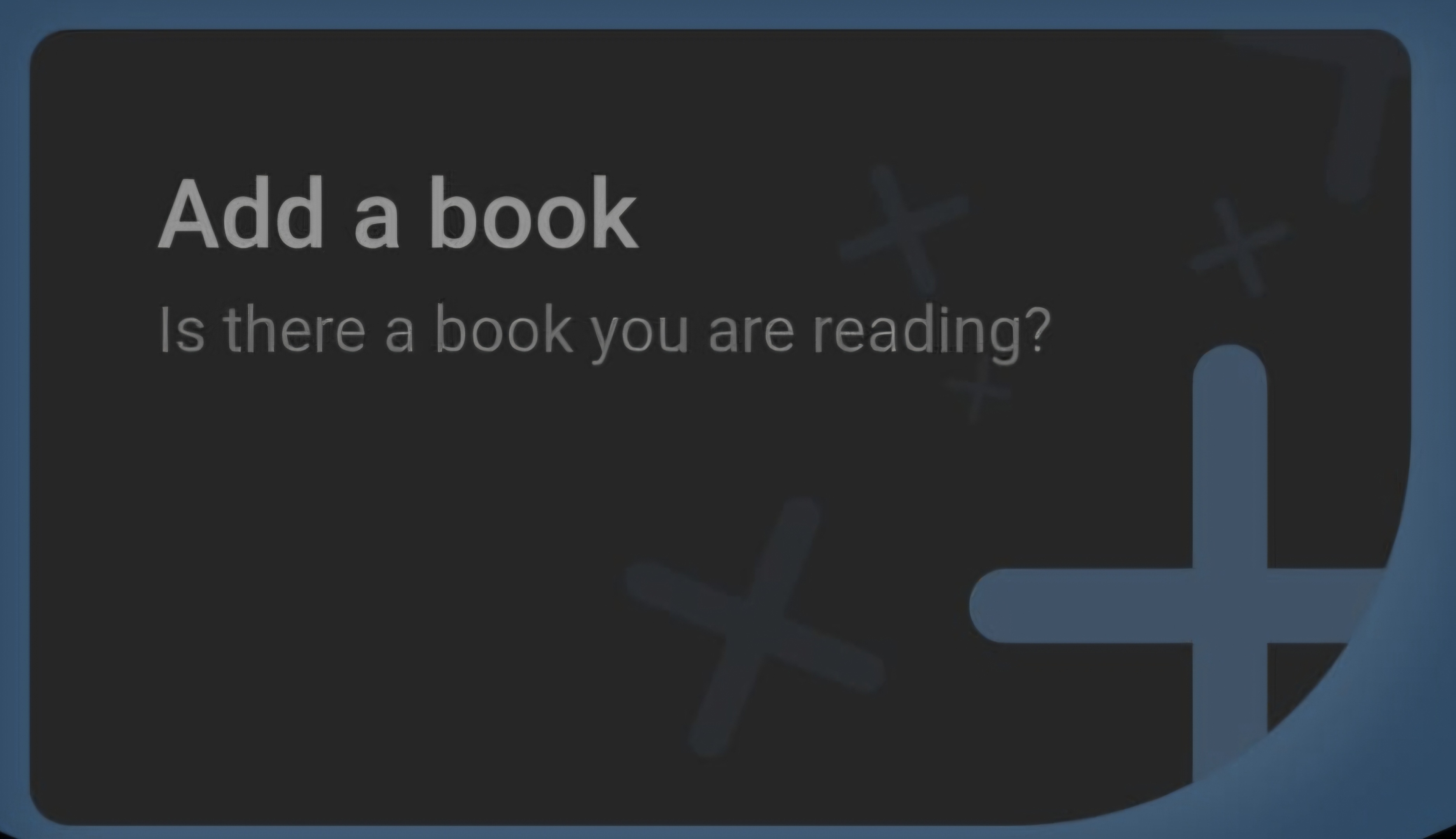
- Or by clicking on the Book Menu right bellow.
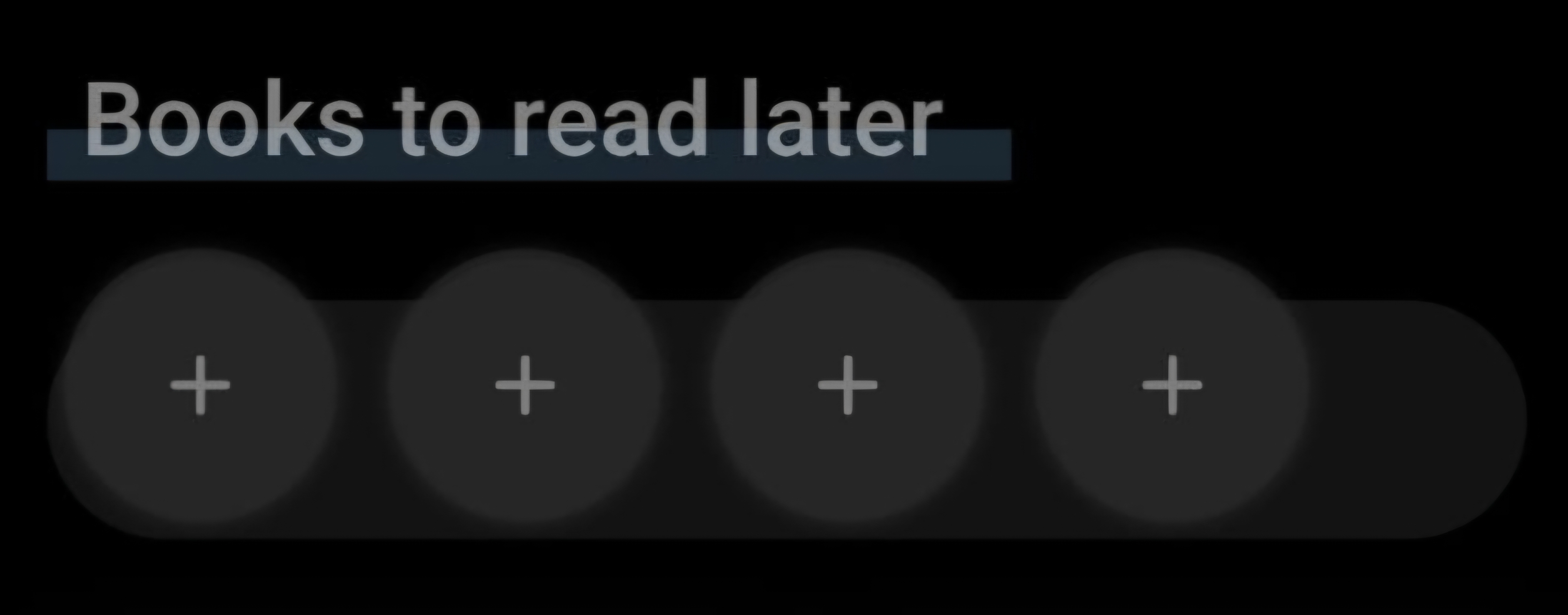
- By clicking on the empty Book Card at the very top.
- You can pick between Add a book:
- By search. This give you the option to select a book from anextensive library, in which all books, usually, have already been assigned with all the necessary metadata and tags.
- By barcode. If the book you are scanning is part of the Bookmory library, all the necessary metadate and tags will also automatically be assigned to the book entry.
- By input. This is convenient, if you can't find your book in the library or it might be a special edition. All the metadata and tags have to be assigned manually by you.
- On the main menu, you can add a book:
-
Start Your Reading Journey
Open the Book Card or, if you added the book via the Book Menu, select the book there, and start entering your reading progress.
If you need an overly detailed list of all the little things you can track and annotate to feed your inner control-freak & love for statistics Click here: